 English
 Español
 Català
 Français
 Deutsch
 Italiano
 Português
 Nederlands
 Dansk
Dansk Suomi
Suomi Norsk
Norsk Svenska
 Polski
 Čeština
 Română
 Ελληνικά
 Türkçe
 Українська
 Русский
 العربية
 हिन्दी
 ไทย
ไทย Bahasa Indonesia
 Bahasa Melayu
 Filipino
 Te reo Māori
 Tiếng Việt
 日本語
日本語 한국어
한국어 简体中文
简体中文 繁體中文
繁體中文Split the bill
Split equally, by dishes, by amount or by identified orderer. Collect each share separately, subject to the order’s payment status.
Take a table order, add another round and split the bill without losing track of what each guest owes. MenuSnap restaurant POS brings staff-entered and QR orders into the same service workflow, with member benefits, permitted discounts and payment records available at checkout.
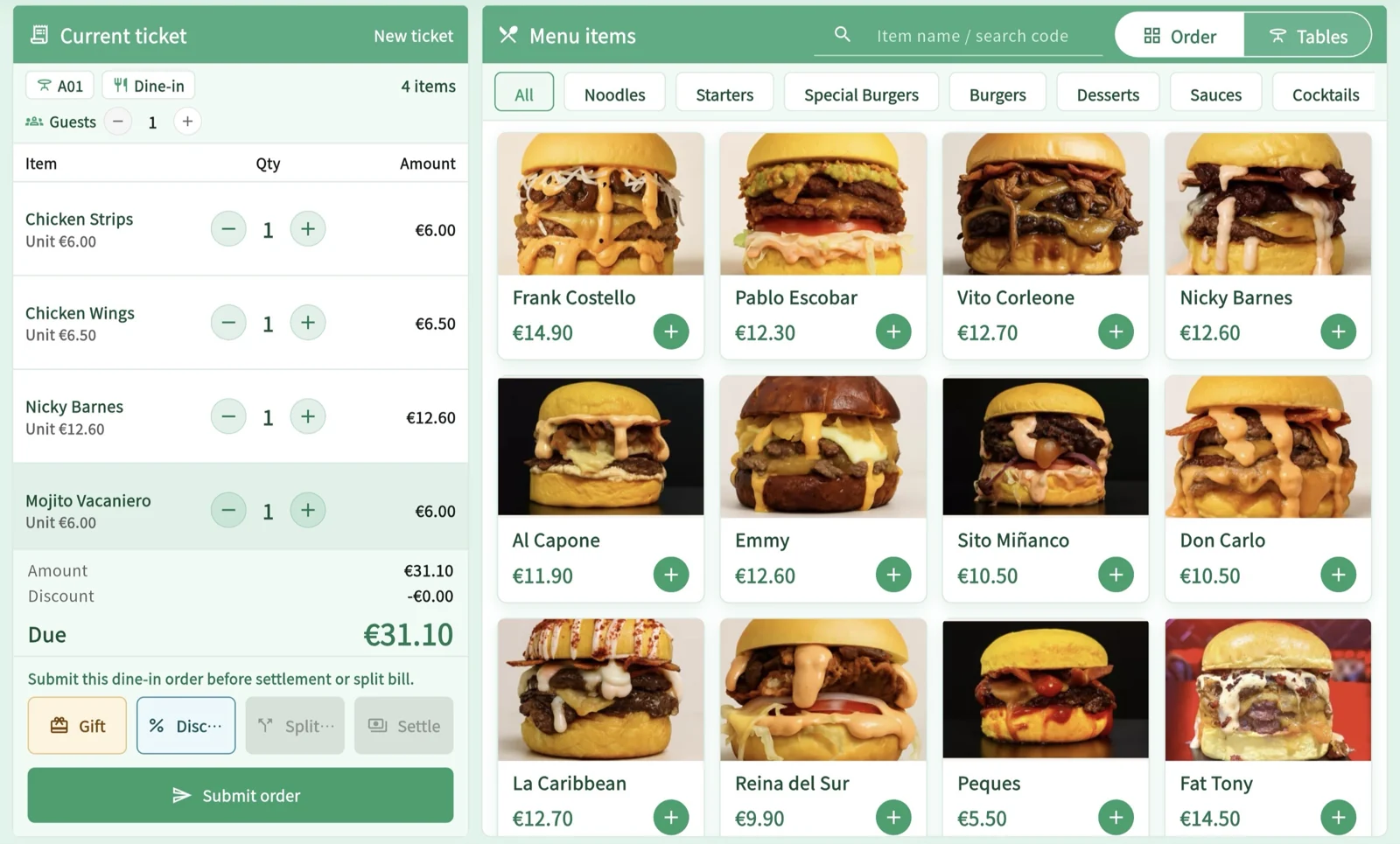
Split equally, by dishes, by amount or by identified orderer. Collect each share separately, subject to the order’s payment status.
Find a member, check their tier and available coupons, and apply eligible benefits to the bill.
Use item or bill discounts, gifts and rounding within staff permissions. Larger adjustments can require supervisor approval.
Open the right table bill, review added dishes and continue service before checkout.
Use the cashier workspace for staff-entered orders and the order list for service follow-up. Table context and added items stay connected to the restaurant workflow.
The checkout flow distinguishes payment methods and results. Refunds and adjustments depend on permissions and payment type; recording an external refund does not move money through an unrelated card terminal.
Review the current shift without closing it, then reconcile when service ends. The connection view shows status; after reconnecting, the POS catches up on events so staff can check the latest records.
Guest QR or staff entry
Items, options and amount
Check the payment result
Payments, cash and pending sync
For an independent card terminal, confirm the payment on the terminal before recording it in POS.
Authorise a supported POS for the correct restaurant, sign in with the appropriate staff access and check the menu, connection and shift status before service.
Enter an order for a guest or review incoming QR orders. Check the table, quantities, options and notes when adding items, then use the configured kitchen handoff.
Review the amount and available payment methods. Record cash or a confirmed independent-terminal payment; an integrated online payment follows its configured provider process.
Check recorded payments, refunds and cash movements. After a connection loss, refresh order and payment states before reconciling the shift, and follow up any difference with the relevant record.
Yes. MenuSnap supports equal shares, selected dishes, a specified amount and identified orderers. Check the bill and payment status, collect each share separately, and confirm the remaining balance before closing the table. An independent card terminal must confirm payment before it is recorded in POS.
Yes. Staff can enter orders in POS while other guests use QR ordering. Confirm how your team handles incoming orders and table add-ons.
You can record a payment confirmed on an independent terminal. This does not mean MenuSnap controls that terminal or verifies its result automatically.
No. KDS and kitchen printing have separate configuration. Choose the kitchen handoff your restaurant needs and check the relevant plan and setup.
No. Shift records help review recorded sales, payments and cash. Local fiscal, invoicing and accounting requirements need their own assessment.
Updated
Start using MenuSnap to make dining better and running your restaurant easier.