 English
 Español
 Català
 Français
 Deutsch
 Italiano
 Português
 Nederlands
 Dansk
Dansk Suomi
Suomi Norsk
Norsk Svenska
 Polski
 Čeština
 Română
 Ελληνικά
 Türkçe
 Українська
 Русский
 العربية
 हिन्दी
 ไทย
ไทย Bahasa Indonesia
 Bahasa Melayu
 Filipino
 Te reo Māori
 Tiếng Việt
 日本語
日本語 한국어
한국어 简体中文
简体中文 繁體中文
繁體中文Restaurant practice
Can an Older Tablet Work as a Restaurant POS? Check Role, Version, and Connection Requirements
To determine whether an existing tablet can handle checkout, check its intended role, operating system and browser or native app version, permissions, internet access, and printer and payment connections. Use a device assessment sheet to record confirmed requirements and gaps, then decide whether to continue with the current setup, limit what you offer, or switch over. Being able to open the login page does not mean the full workflow will work, and hardware is not included in the subscription.
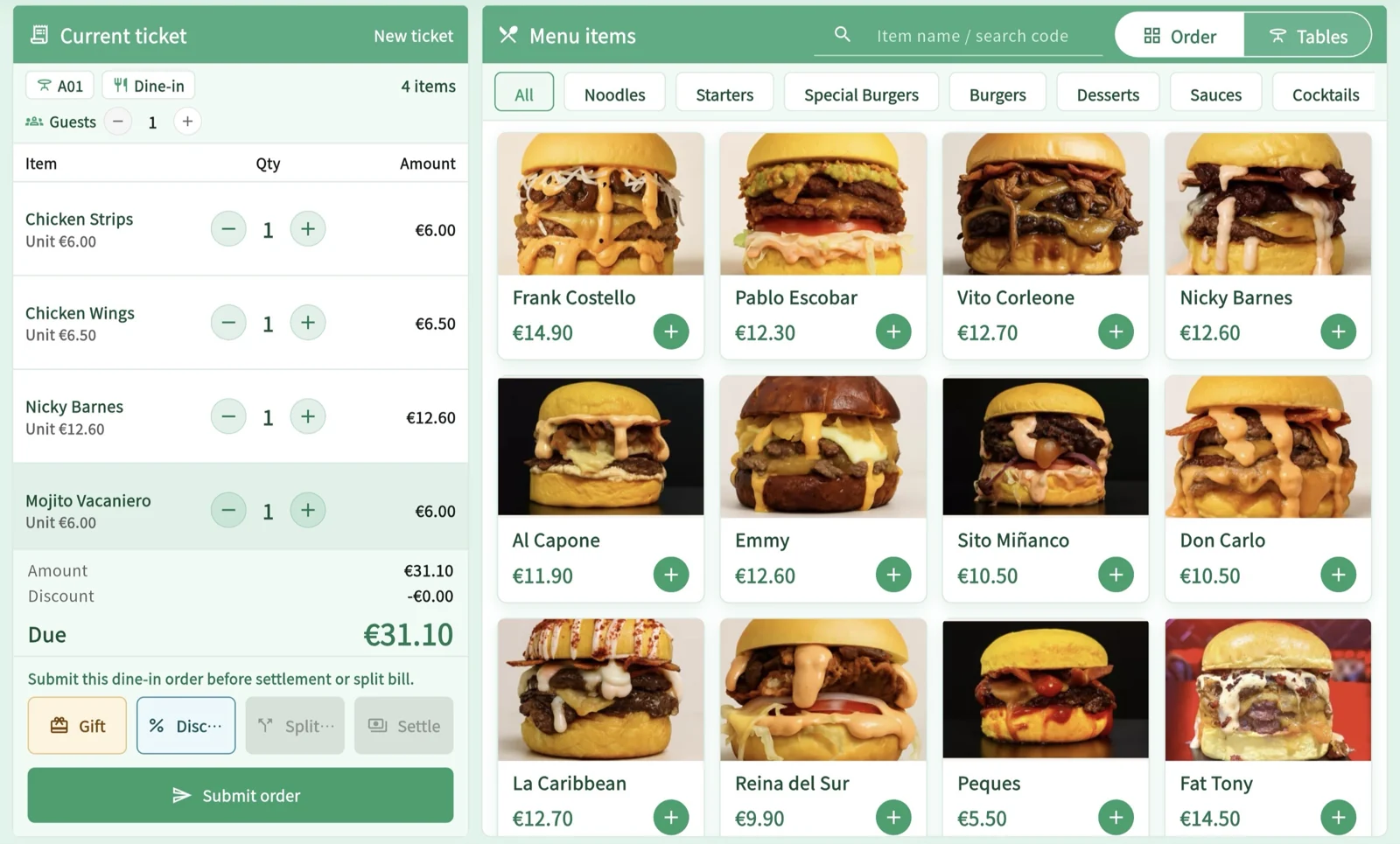
You can assess an older tablet before buying a complete set of dedicated equipment. But being able to open the login page does not mean it can handle checkout during a shift. First decide whether it will be used at the counter, tableside, or in the kitchen, then check the operating system, software access method, permissions, internet connection, and accessory connections. If you have not confirmed the requirements, keep your current service arrangements in place rather than treating an approaching busy weekend as a reason to rush the decision.
Choose equipment based on its role at the counter, tableside, or in the kitchen
First decide whether the tablet will be used for fixed checkout at the counter, to assist tableside, or for viewing information in the kitchen. If the same tablet needs to be moved away from the counter frequently, consider how the checkout role will be covered. If you want to use it in the kitchen too, do not assume front-of-house staff can always retrieve it when needed. A sufficiently large screen is only one consideration: check its placement, power supply, available workspace, and whether its use conflicts with another role on site.
A lightweight staff workspace on a phone and a browser-based POS on a tablet each have their own use cases. The manager can list the tasks required during a shift with the staff who will actually use the device, then check on site whether the screen, input method, and placement are suitable. Once you identify gaps in how the roles are covered, decide whether to adjust responsibilities or buy another device. Do not assume that a device's age or condition predicts how well the business will perform.
Device assessment sheet: record each device separately
The manager can list the devices on hand and their intended uses on paper, leaving any unverified requirements blank. Hardware is not included in the subscription, so purchasing it is a separate decision. The fact that hardware is optional does not mean every older device will be suitable.
- Model and on-site conditions: Record the tablet model, operating system version, power supply, screen readability, and where it will be fixed or carried. Check whether another role also needs the device.
- Software access method: Note the browser and its version, or the platform and version of the official app you plan to install. Do not assume that because a webpage opens, a corresponding native app is available to install.
- Account and plan: Check the permissions required for each role, the conditions for using the terminal, and the actual subscription. List any tasks that still need the manager's confirmation.
- Printing workflow: Record the printer model, connection method, sending software, rules, and configuration.
- Payment arrangements: Specify whether checkout is in person or online payment has been enabled, where to check the result, and who handles exceptions. Do not offer customers a payment method that has not been enabled.
- Costs and gaps: Check device purchases separately from the subscription. Distinguish essential accessories from optional equipment and issues that could be resolved by adjusting staff responsibilities.
Prepare for browser and native app use according to the actual setup
The MenuSnap hardware page describes browser-based POS use on compatible iPads and computers. For native apps, refer to the official releases in the download center. When assessing a device, first decide whether you plan to use a browser or install a native app, then check the relevant platform, version, and connection requirements. Device preparation and the range of supported uses may differ depending on the method. The restaurant should plan the switch based on verified information, rather than assuming that the requirements for one method also apply to the other.
If you plan to keep printing orders in the kitchen, separately check the compatible app or printing service, plan, and configuration. Do not assume that a browser can print directly to any USB device. Choose between a kitchen display and paper tickets based on how your team works. Having a tablet does not mean you must buy a screen, and avoiding a purchase is not a reason to remove handoff tools that are still needed.
Check for actual results separately for payments and kitchen order receipt
If you keep a standalone card terminal, staff should first confirm the result on the external terminal and then record the payment against the corresponding bill. MenuSnap does not automatically verify this separate card transaction. If the connection is unstable or the result is unclear, check the original transaction instead of charging the customer again.
- QR-code ordering through a webpage, cloud syncing, and online payments depend on an internet connection. Check the official app version and configuration for its offline capabilities.
- Check separately that the kitchen has received the preparation request, the customer has received the food, and the bill has been settled. None of these checks replaces the others.
If you are not ready, decide whether to limit the rollout or postpone it
- Compatibility or printer connections have not been confirmed: Have the manager contact support to verify them, and continue using services that are already working.
- It is unclear who receives orders or how the kitchen gets them: First clarify the roles and what each person actually receives. Do not promise customers that you can take orders just because the menu opens.
- The way to check payment results is unclear: An authorized person should explain where to check and who will handle the issue. Do not try to resolve it by having different staff members each attempt to charge the customer again.
- Only some requirements have been confirmed: You can keep the existing manual workflow or offer menu browsing within the confirmed scope. Do not enable an ordering method that is not ready.
Before service begins, assign someone to assist with menu selection, receive orders, confirm them with the kitchen, and handle handoff. Each person should know where to check requests and who to pass them to if something is interrupted. Use customer orders during service only for normal operations; do not experiment with unfamiliar payment, refund, or reprint procedures on them.
If you keep the existing workflow, brief staff before the shift on which channels remain in use, who will collect new requests, and where to leave anything outstanding after an interruption. Once the connection is restored, compare the latest orders with what has already been prepared and actually paid for, then fill in any missing records to avoid duplicate entries. The owner or an administrator they authorize should actively arrange changes to equipment and operating software. A new version may be available, but the timing of a switch should also take the location's existing printing and payment arrangements into account.