 English
 Español
 Català
 Français
 Deutsch
 Italiano
 Português
 Nederlands
 Dansk
Dansk Suomi
Suomi Norsk
Norsk Svenska
 Polski
 Čeština
 Română
 Ελληνικά
 Türkçe
 Українська
 Русский
 العربية
 हिन्दी
 ไทย
ไทย Bahasa Indonesia
 Bahasa Melayu
 Filipino
 Te reo Māori
 Tiếng Việt
 日本語
日本語 한국어
한국어 简体中文
简体中文 繁體中文
繁體中文Operations insights
Can Your Existing Phones, Tablets and Computers Keep Handling Checkout? Start with a Role-by-Role Equipment Audit
First list the tasks for mobile ordering, fixed checkout, kitchen viewing, and sending print jobs. Then record each existing device’s operating system and version, power, connectivity, person responsible, and evidence of compatibility. Separate equipment that can stay in use, needs adjustment, or remains unverified. Decide what to buy based on actual equipment gaps for each role—not simply because a device turns on or has the same connector.
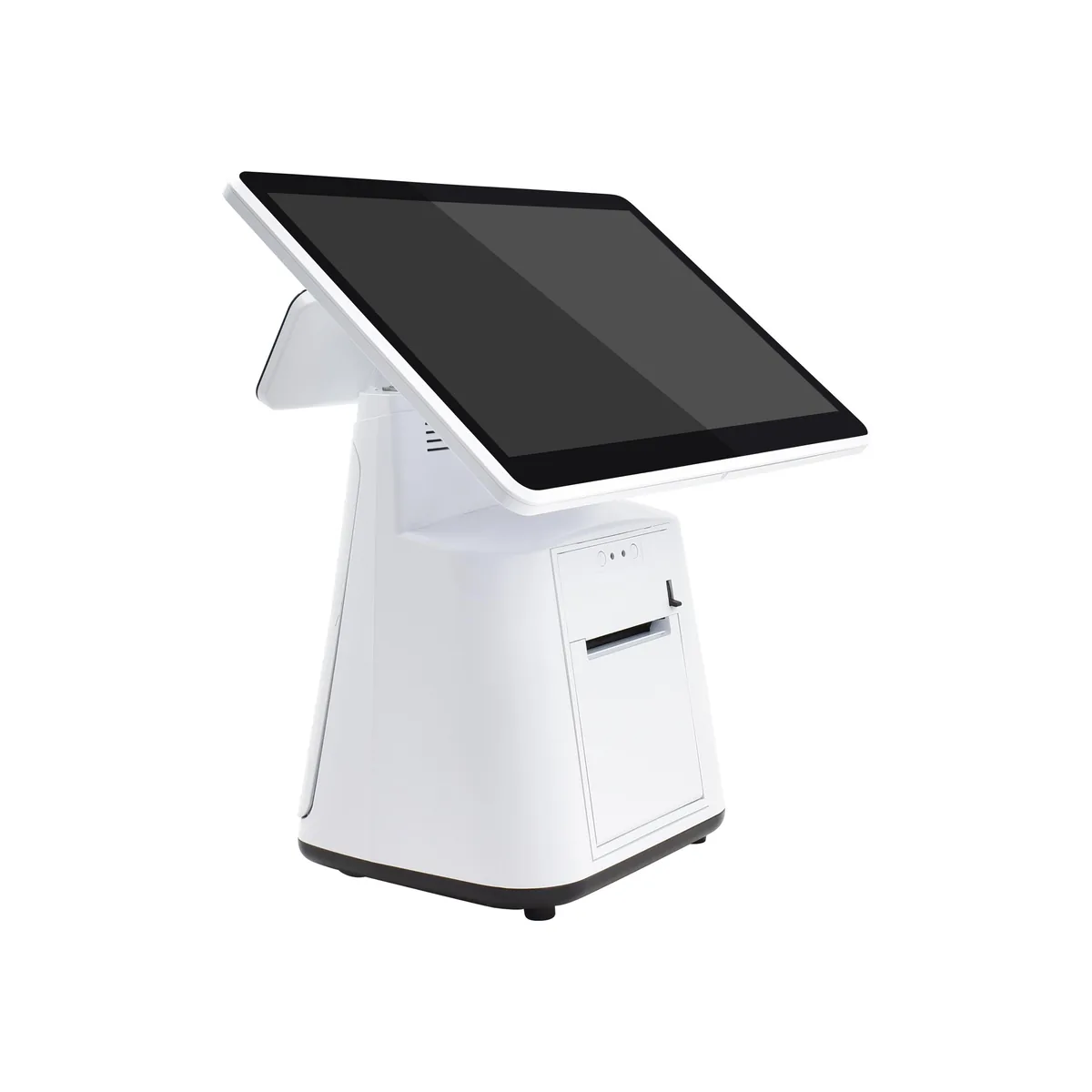
To decide whether existing equipment can keep handling checkout, first identify the role it needs to perform, then check whether the software and connections required for that role are supported. Being able to open a webpage does not mean a device has a compatible native app or can connect to a printer. Audit your equipment before buying anything so you can tell whether you need another device, a better location for one, or a clearly assigned person to take over.
Fill out a role card for each device
- Device ID and full model: ____; operating system and version: ____; browser or intended software and version: ____.
- Role: ____; information that must be easy to read: ____; fixed location or area where it will be used: ____.
- Power and charging arrangements: ____; connectivity at the actual location: ____; person responsible for the device after use: ____.
- Connected printer or other peripheral: ____; software used to send content: ____; basis for compatibility confirmation and date: ____.
- Conclusion: keep using / change the role or location / still needs checking / replace; reason: ____; person responsible for the next step: ____.
Record restaurant-owned equipment separately from personal devices that employees voluntarily use. Do not record passwords. If the same tablet is needed on both the patio and at the counter, first check for scheduling or role conflicts; do not assume that sharing problems mean the device is too old.
Assess phones for tableside readability and fixed counter stations for full order review
MenuSnap provides a lightweight staff workspace for taking orders and recording payments. Check it at the actual tables to see whether table numbers, long dish names, and options are easy to read, and assess glare, network coverage, and battery life. Stop in a safe place before operating the device; do not expect staff to read it while walking. If the phone is unavailable, decide which counter station or colleague will take over.
Compatible iPads and computers can use the POS through a browser. At a fixed station, staff should be able to see the full order and amounts. Make sure the stand is stable and does not obstruct communication, and keep keyboards, cables, and power supplies out of handover walkways. If an app must be installed, choose only from the operating systems and versions listed in the download center. Do not assume installation is supported just because a computer can access the internet.
Audit kitchen displays and print-sending devices separately
Check the kitchen display from the cooks’ actual working positions to make sure text, options, and notes are legible, and place it away from heat, oil, water, and walkways. A KDS must match the subscription plan, enabled kitchen stations, and staff permissions. Whether an unused tablet can fill that role still depends on confirming compatibility and setup. If paper tickets are also used, make clear that both are for the same preparation task so it is not done twice.
Record each printer’s full model, interface, and paper width separately, and confirm which device and software actually send the tickets. MenuSnap’s web POS does not connect directly to printers; it requires a supported, released app or print service. Check the templates, destinations, and receiving roles for both customer receipts and kitchen tickets. Matching paper widths or being able to plug in a cable does not prove compatibility.
Ask support about specific requirements instead of guessing which models are supported
- Are this device’s operating system and version suitable for its intended role?
- Will you use the web version or a released app? What additional software or connection requirements apply to any peripherals?
- Is there clear support documentation for this printer’s model, interface, ticket type, and sending software?
- What other information is needed to make a purchasing decision? Until the details are confirmed, which existing arrangement should remain in place?
The software subscription does not include hardware; choose equipment as needed. The owner or an administrator they have explicitly authorized should coordinate installations and changes to existing equipment. Resolve outstanding questions before purchasing, and do not have employees change the router, reconfigure printers, or update apps on the fly during a busy shift.
Verify payments separately at the card terminal, and plan backup staffing and power
A compatible standalone card terminal can remain in use. First check the bill and amount, then have the terminal and payment provider verify the payment. Once it succeeds, record the payment against the corresponding bill. A POS record does not replace bank card verification. Check fees and the terminal’s connectivity requirements with the provider separately. If the result is unclear, check the original transaction instead of charging again.
A backup device should be able to take over a clearly assigned role, with battery, account access, connectivity, and storage responsibility all planned. MenuSnap does not currently provide a complete offline ordering and checkout workflow; actions such as payments require server confirmation. If the network fails, use the restaurant’s manual handover process. When the connection returns, first check existing orders and amounts actually received, then add any missing records.
Let specific gaps determine what to buy
Sort the role cards into keep using, needs adjustment, unverified, and needs replacing. Address gaps that could interrupt service first. For example, a battery that cannot last through a shift of mobile service, a kitchen display that is hard to read from the working position, and a printer connection with no evidence of support each need a different response. Then see whether borrowing devices, interruptions for charging, or misread information continue before deciding whether to buy more. Do not treat the number of devices as proof that things have improved.
Sources
Related articles
How to Calculate the Total Cost of a Restaurant POS System: Put Subscriptions, Equipment, Payments, and Switching Costs on One Checklist
First set a consistent scope for locations, roles, and comparison period, then list one-time, recurring, and usage-based expenses separately. For each item, note the basis for the quote, who receives payment, whether tax is included, and how long the quote is valid. List unquoted items separately; a known subtotal is not the full price. Update the budget with actual invoices, and avoid comparing monthly fees alone or assuming that zero platform commission means payment processing is free.
Read moreWhat to Do When Your Restaurant Suddenly Loses Internet: Number Orders Manually and Reconcile Preparation and Payments After Service Returns
When the connection drops, stop resubmitting orders with uncertain outcomes and avoid charging customers again. Have one person coordinate front-of-house, kitchen and cashier updates, keeping separate records of existing orders, new requests, items prepared and payments received. Give paper tickets a consistent manual number. Once the server connection returns, check the latest system status first, then reconcile what was delivered and paid, and add only missing records. Hand off any outstanding items individually to the next shift.
Read more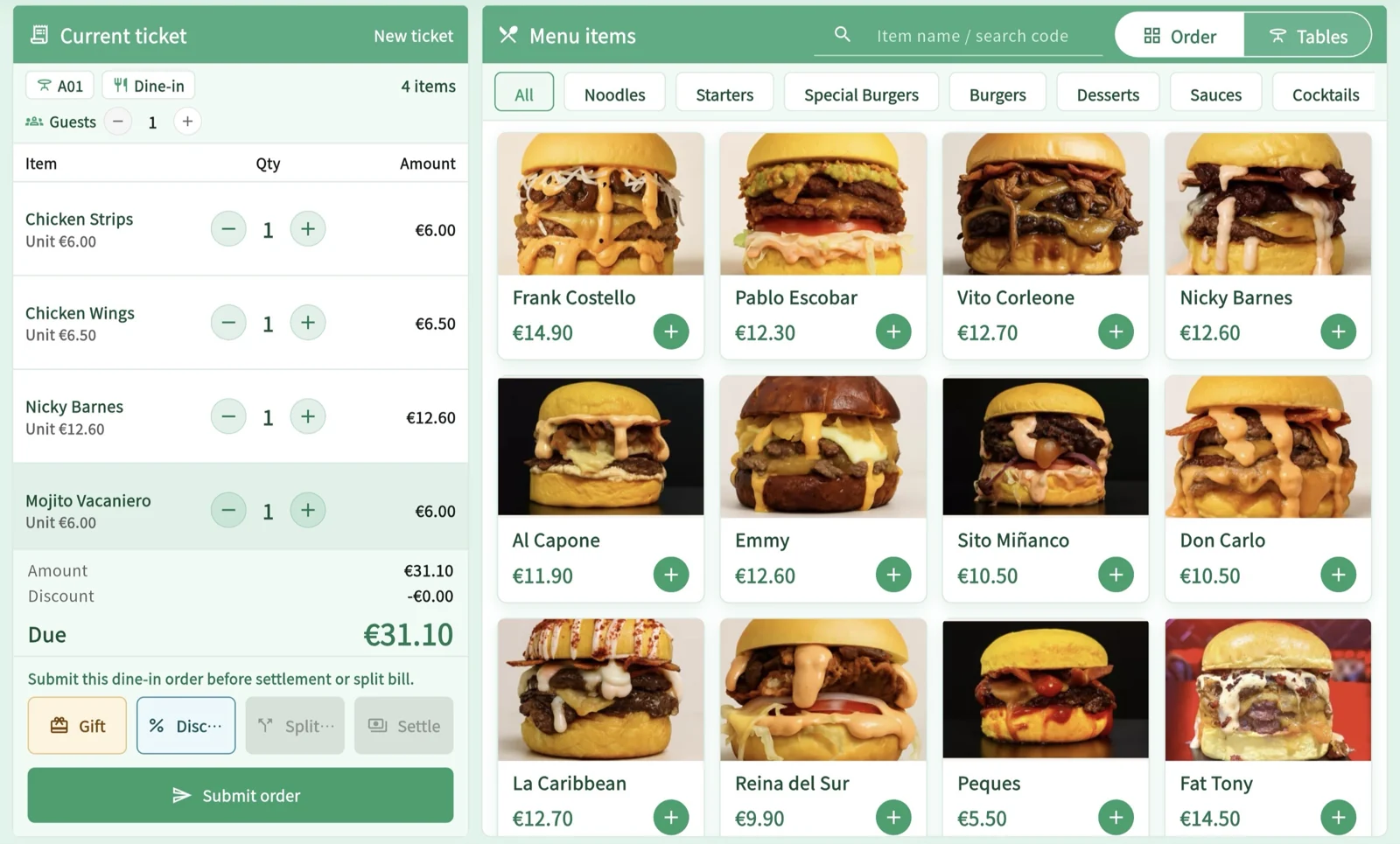
Can an Older Tablet Work as a Restaurant POS? Check Role, Version, and Connection Requirements
To determine whether an existing tablet can handle checkout, check its intended role, operating system and browser or native app version, permissions, internet access, and printer and payment connections. Use a device assessment sheet to record confirmed requirements and gaps, then decide whether to continue with the current setup, limit what you offer, or switch over. Being able to open the login page does not mean the full workflow will work, and hardware is not included in the subscription.
Read more